Red Dead Redemption 2 has nearly 40 graphics options, and the wrong mix gives you stutter, a soft image, or both. Finding the best graphics settings for Red Dead Redemption 2 PC takes less trial and error than it looks once you know which sliders actually matter. This guide covers a baseline setup by VRAM tier, the settings that cost the most FPS, the Vulkan vs. DirectX 12 question, and how DLSS, FSR and VSync behave. It also has a section for 4GB GPUs and laptops, which most guides skip. Every figure is labeled as official, tested, or community advice. Start with the baseline below.
In This Article
ToggleQuick-Start Settings: Best Balance of FPS and Visual Quality
The goal is smooth frame delivery and a clean image, not maxed-out sliders. Rockstar’s recommended PC specs list 12GB of RAM and a GeForce GTX 1060 6GB or Radeon RX 480 4GB, so that is a sensible reference point. The values below are starting points for RDR2 60 FPS graphics settings, not NextBaseAI benchmark results. After each round of changes, run the game’s built-in benchmark (Settings > Graphics > Run Benchmark Test), which is what Rockstar recommends.
Setting | Start with | Why |
|---|---|---|
Texture Quality | High (Ultra with ample VRAM) | Sharp surfaces, small FPS cost |
Reflection, Volumetrics, Water Quality | Medium | Biggest savings, least visible loss |
Shadow Quality, SSAO | Medium | Next-biggest savings |
Anti-aliasing | TAA on, MSAA off | MSAA is very expensive |
Upscaling | DLSS or FSR only if you need more FPS | See the upscaling section |
VSync | Off | Often causes choppy frame pacing |
Recommended Baseline Settings by VRAM Tier
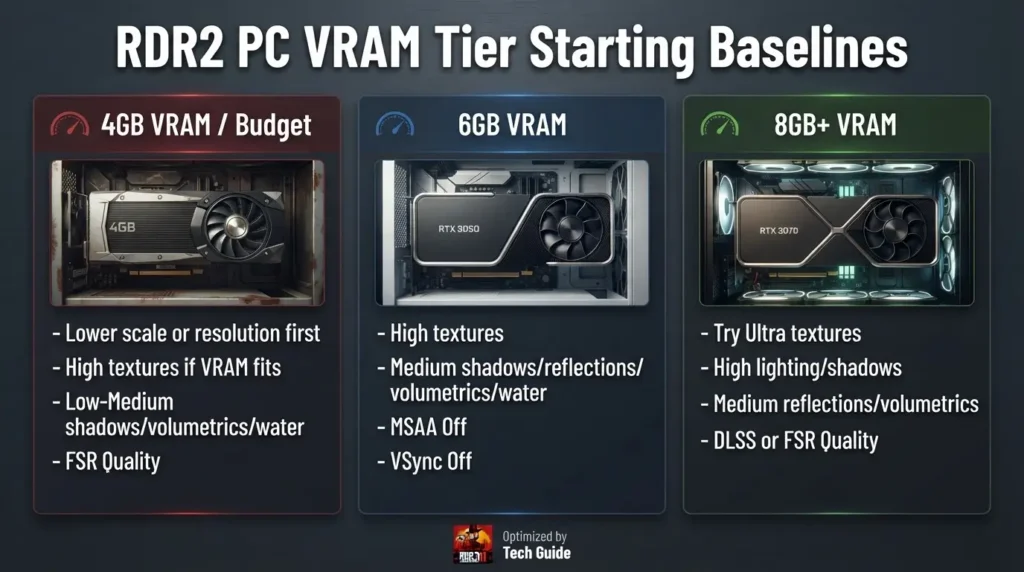
VRAM sets your ceiling. In PC Gamer’s 2019 testing, RDR2 would not let cards exceed their VRAM. 2GB cards were limited to low on many settings, 3GB cards could not run everything at Ultra, and 4GB was the practical minimum for the full graphics experience, with 6GB or more preferred. That is one reviewer’s testing, not an official Rockstar chart.
To optimize Red Dead Redemption 2 PC setups with 4GB to 6GB of VRAM, keep textures on High and shadows on Medium. With 8GB or more, you can try Ultra textures and High lighting and shadows while leaving Reflection and Volumetrics at Medium. Retailer and community guides treat 6GB as a floor and 8GB as comfortable headroom, but those are rules of thumb, not Rockstar numbers. If stutter appears after a change, step textures down one notch first.
Biggest FPS Killers vs. Low-Cost Visual Settings
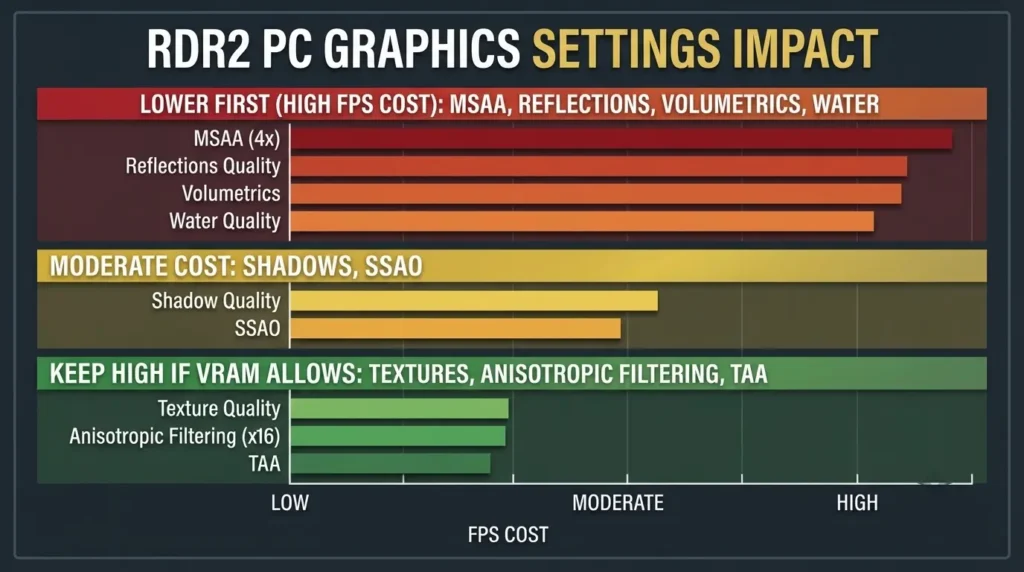
Rockstar’s own tuning guide says to adjust MSAA, Reflection Quality, Water Quality, Volumetric Quality and Near Volumetric Resolution first, and only then Shadows, SSAO, Lighting and the rest. PC Gamer’s tests on an RTX 2060 and RX 5700 point the same way. Use this table as a map.
Setting | FPS cost | What to do |
|---|---|---|
MSAA (4x) | Very high (25%+ drop in PC Gamer’s test) | Keep off, use TAA |
Reflection Quality | High | Medium |
Volumetrics, Near Volumetric Resolution | High | Medium, or Low for near resolution |
Water Quality, Water Physics | High at top values, little visible gain | Medium, physics low |
Shadows, SSAO | Moderate | Medium |
TAA | About 1% | Keep on |
Texture Quality | Low, if it fits in VRAM | High or Ultra |
Anisotropic Filtering | Typically low | 8x to 16x |
Most advanced options | Under 1-2% each (PC Gamer) | Leave alone |
Settings to Lower First for Higher FPS
Start with the Rockstar list. Reflection Quality and Volumetrics Quality are the two biggest levers in PC Gamer’s testing, and the visual gap between Ultra and High is hard to spot in play. Water is the third. Community guides note that top Water Quality and Water Physics values eat frames for changes few players notice. Work down this list for any RDR2 60 FPS target, rerunning the benchmark after each step.
Then move to Shadow Quality and ambient occlusion. They cost less individually but add up. Community guides say Medium shadows still look good, and PC Gamer suggests keeping SSAO at Medium or higher because going lower is easy to notice. If you are still short on frames, drop shadows next.
Settings You Can Keep High With Minimal FPS Loss
Texture Quality is the best value in the menu. PC Gamer found that lowering it gave only a modest boost, while low-resolution textures were very noticeable, so keep it at High or Ultra on any card with 4GB or more. Anisotropic filtering keeps ground and road textures sharp at shallow angles and is cheap on modern GPUs, and TAA costs roughly 1%. Keeping these high lets you cut lighting and physics options without the image turning soft, which is how you get smooth gameplay without lag and without a set-everything-to-Low look.
Vulkan vs. DirectX 12, Upscaling, and VSync Explained
Three system-level choices shape smoothness as much as any slider: the graphics API, upscaling, and VSync. Average FPS hides the real story here. The 1% lows, meaning your slowest frames, decide whether the game feels smooth.
Should You Choose Vulkan or DirectX 12?
RDR2 defaults to Vulkan, with DirectX 12 as an option. In KitGuru’s November 2019 test, an RTX 2070 SUPER and RX 5700 XT with everything on High, Vulkan’s average FPS was never more than 6% higher. DX12 improved 1% lows by 16% to 17% at 1080p and about 30% at 1440p in the built-in benchmark, and by 53% to 58% in real gameplay at 1440p. KitGuru called DX12 the clear winner. Older coverage was mixed: Overclock3D mostly tested on Vulkan and found DX12 needed work, and PC Gamer’s December 2019 retest stayed on Vulkan while suggesting you try the other API if performance seems off. All of this is launch-era data on two GPUs, and patches and drivers have changed since.
So test it yourself. Switch the API, restart the game, and run the benchmark on each one while watching a frame-time overlay such as NVIDIA FrameView or MSI Afterburner. Keep whichever has steadier 1% lows and fewer micro-stutters, not the higher average. Shacknews found no visual difference between the two, so you lose nothing by choosing the smoother one.
Using DLSS, FSR, Anti-Aliasing, and VSync Properly
Upscaling is the easiest FPS gain once the heavy sliders are tuned. Rockstar added DLSS in July 2021, and NVIDIA reported up to 45% better performance at 4K and over 60 FPS at 1080p with max settings on RTX cards. AMD’s FSR 2.0 followed in Title Update 1.31, working under both Vulkan and DX12, and ComputerBase reports that Title Update 1.32 upgraded it to FSR 2.2. FSR is not limited to Radeon cards, so GTX owners can use it too. Either upscaler replaces the game’s native TAA while active, so start at Quality mode and step down only if needed.
Leave the in-game VSync option off. When your frame rate dips below your refresh rate, classic double-buffered VSync can snap you down to half the refresh rate, so 60 becomes 30, and that reads as choppiness. Players on r/PCRedDead report the same problem. If tearing bothers you, use a driver-level frame cap or adaptive sync (G-Sync or FreeSync). The NVIDIA app, which replaced GeForce Experience, offers max frame rate and driver V-Sync controls and also handles one-click optimal settings, so check whether RDR2 is on its supported list.
Optimizing RDR2 for Low-End PCs, 4GB GPUs, and Laptops
On a 4GB card or an older CPU, the priority order changes. Lower the resolution or Resolution Scale before touching textures, which matches PC Gamer’s advice for slower GPUs. Keep textures on High if VRAM allows, since Low looks bland and blurry. Set Reflection, Volumetrics, Water and Shadows to Low or Medium, keep MSAA off, and add FSR for headroom. In PC Gamer’s 2019 tests, a GTX 1060 or RX 570 class card with at least 4GB of VRAM managed roughly 30 to 60 FPS at 1080p on default settings, and the same article recommends a 6-core CPU or better.
Fixing Laptop GPU Selection and Thermal Bottlenecks
If a laptop with an RTX GPU gets single-digit or low-teens FPS, check hardware before settings. Steam community threads show this pattern, with replies pointing to the game running on the integrated GPU or the laptop throttling from heat. Run through this list first:
- Open Settings > System > Display > Graphics, add the game’s .exe, and set it to High performance. Windows lets you assign a GPU per app.
- Repeat the assignment in the NVIDIA app or AMD software if your laptop offers a GPU selector.
- Plug in the charger and choose the highest power mode.
- Check the GPU tab in Task Manager to confirm the dedicated GPU is the busy one.
- Watch temperatures. If clocks sag after a few minutes, clean the vents and raise the back of the laptop.
Frequently Asked Questions About RDR2 PC Graphics Settings
What are the best graphics settings for Red Dead Redemption 2 PC for 60+ FPS?
High textures, Medium Reflection, Volumetrics, Water and Shadows, TAA with MSAA off, and VSync off. Run the benchmark, then add DLSS or FSR if you are still short.
Which RDR2 settings impact performance the most?
Per Rockstar: MSAA, Reflection Quality, Water Quality, Volumetric Quality and Near Volumetric Resolution. Shadows and SSAO come next.
Should I use Vulkan or DirectX 12 in Red Dead Redemption 2?
KitGuru’s 2019 tests favored DX12 for 1% lows, but results vary by GPU, driver and patch. Test both and keep the smoother one.
Should I use DLSS or FSR and turn off VSync?
Use DLSS on RTX cards and FSR on everything else when you need more FPS, and leave in-game VSync off to avoid choppy frame pacing.
How can I fix low FPS or stuttering on a 4GB GPU or gaming laptop?
Lower the resolution first, keep textures on High, use FSR, and on laptops confirm the dedicated GPU is active and temperatures are under control.
How to Dial In Your RDR2 Setup
Protect your VRAM, cut the heavy lighting and physics options first, test both APIs for steady 1% lows, and leave in-game VSync off. Use this four-step routine for RDR2 PC optimization settings:
- Match textures to your VRAM tier.
- Set Reflection, Volumetrics and Water to Medium and keep MSAA off.
- Benchmark Vulkan and DX12, keep the steadier one, and add DLSS or FSR if you still need frames.
- Play 15 minutes in a busy area, then lock in your settings and stop tweaking.
If you want to check PC hardware requirements, console comparisons, or how mods work in the game, read our full Red Dead Redemption 2 PC breakdown.