Last updated on September 29th, 2026 at 11:50 am
You just got off a call that ran 55 minutes long, and now you’re staring at a recording you don’t have time to rewatch. Somewhere in there is a deadline someone mentioned in passing, a name you already forgot, and an action item that’s now going to fall through the cracks. That’s the real tax on meetings: not the hour you spend in them, it’s the hour after, spent reconstructing what actually happened.
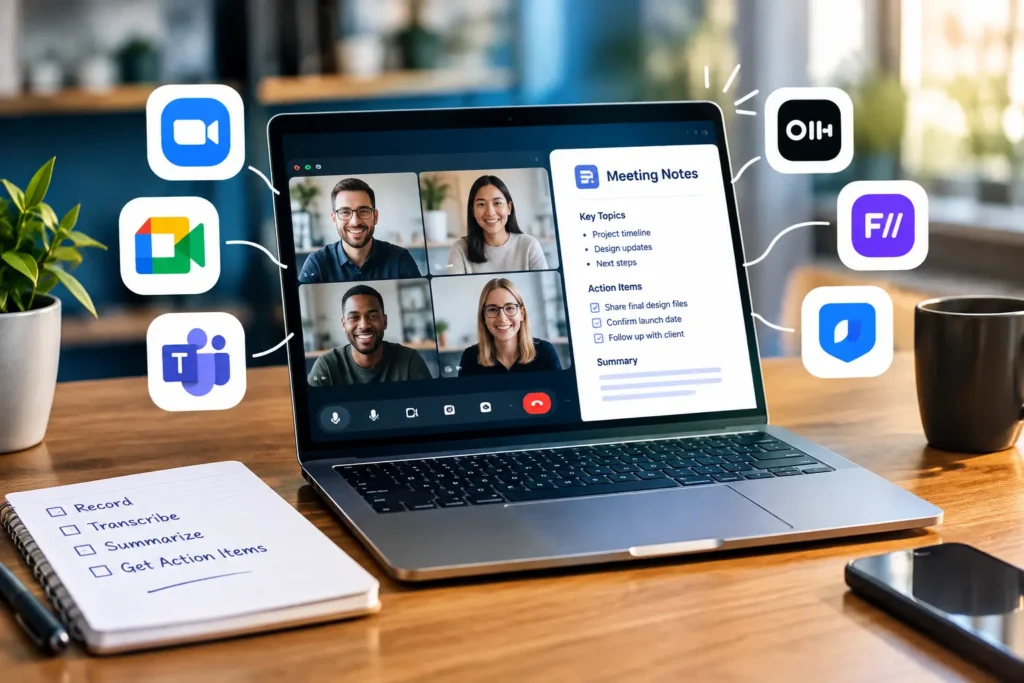
This is basically why the search for the best AI tools for meeting notes never really slows down — everyone’s looking for a way to skip that reconstruction step entirely. These tools record, transcribe, and summarize your calls, so you walk away with a recap and a list of who owes what. Some do this by sending a visible bot into your Zoom or Google Meet call. Others sit quietly on your laptop and never show up as a participant. Which one fits you has less to do with features and more to do with how your team feels about a stranger-shaped icon showing up on every call.
We tested and researched nine tools people actually use for Zoom, Google Meet, and Microsoft Teams, and pulled together real pricing and real limits below — enough to help you shortlist the best AI tools for meeting notes for your own setup without reading nine separate vendor pages. Skim the table if you’re in a hurry. Read the rest if you want to know where each tool quietly falls apart.
One caveat up front: pricing in this category moves fast, sometimes month to month. Everything below was checked against vendor pages and independent pricing trackers in the second half of 2026. Double-check the number on the vendor’s own site before you hand over a credit card.
In This Article
ToggleQuick Comparison: Best AI Meeting Notes Tools at a Glance
| Tool | Best For | Primary Platform | Free Plan Limit | Bot Required? | Official Link |
|---|---|---|---|---|---|
| Fathom | Individuals and sales teams on Zoom | Zoom, Meet, Teams | Unlimited recording, transcription, and basic AI summaries; advanced summary templates and action items need Premium | Yes (Bot-free available on Mac) | Fathom.video |
| Otter AI for Zoom | Live transcription during the call | Zoom, Meet, Teams | 300 minutes/month, 30-minute cap per conversation, 3 lifetime file imports | Yes | Otter.ai |
| tl;dv | Sales teams needing clip libraries | Zoom, Meet, Teams | Unlimited recording; capped at 10 lifetime AI notes/summaries | Yes | tl;dv |
| Granola | Anyone who wants a botless AI meeting recorder | Zoom, Meet, Teams, in-person | Unlimited meeting notes; only the last 30 days of history stay accessible | No | Granola.so |
| MeetGeek | Best free plan overall | Zoom, Meet, Teams | 3 hours transcription/month | Yes (or bot-free capture) | MeetGeek.ai |
| Krisp AI noise cancelling | Noisy environments and call centers | Zoom, Meet, Teams, phone calls | 60 minutes of noise cancellation/day | No | Krisp.ai |
| Sembly AI | Enterprise meeting analytics | Zoom, Meet, Teams | Murky — verify at signup, see below | Yes | Sembly.ai |
| Fellow | Teams that also run agendas and 1:1s | Zoom, Meet, Teams, Slack huddles | 5 lifetime AI notes | Optional | Fellow.app |
| Zoom AI (formerly AI Companion) | Teams already paying for Zoom | Zoom-native | 3 AI-summarized meetings/month | No | Zoom.com |

That bottom row deserves an explanation before you go looking for “AI Companion” on Zoom’s site and can’t find it — Zoom quietly retired the name in mid-2026. The features are still there, just relabeled and folded into Zoom Workplace. More on that below.
Bot-Based vs. Botless AI Note Takers: What's the Actual Difference?
Every tool on this list falls into one of two camps, and knowing which is which will save you an awkward conversation with your legal team later.
Bot-based tools send a visible participant into your call — something named “Fathom Notetaker” or just “Otter.ai” — that sits alongside everyone else and pulls audio and video straight from the meeting platform. It works whether or not you’re the host, and everyone can see it’s there, which covers you on consent. The trade-off shows up with skittish clients: send a recording bot into a first sales call or a candidate interview, and you’ll sometimes watch people visibly stiffen up once they clock it.
A botless AI meeting recorder — Granola and Krisp both work this way — grabs audio straight from your device instead, through your system audio or your mic and speakers, and rebuilds the meeting from that. Nothing joins as a participant. It feels more private and less performative, but there’s a real cost: you’re usually only capturing your own side of the conversation clearly, and neither video nor anyone else’s screen share makes it into the record.
If you’re running sales calls and want CRM-ready clips of a prospect’s exact words, a bot like Fathom’s gets you there. If you’re doing HR conversations or client meetings where a visible recording bot would kill the mood, a botless recorder like Granola is the better call. A handful of tools — MeetGeek and Fellow among them — now let you toggle between the two modes per meeting, so you’re not locked into one philosophy.
Top AI Meeting Note Tools Reviewed
Fathom
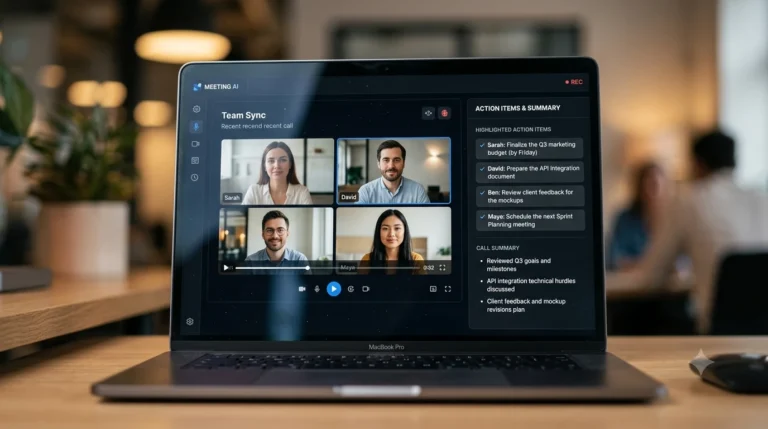
Fathom’s free plan is the reason most “best free AI notetaker” roundups mention it first: unlimited recording, unlimited transcription, and basic AI summaries generated on every single call, no monthly meter running in the background. That’s genuinely rare in this category, and it’s why individual users and solo consultants tend to stick with Fathom’s free tier far longer than they do with competitors.
The catch shows up if you actually try to use the polished stuff. Fathom’s advanced summary templates — the BANT and Sandler sales frameworks, the more structured recaps — are capped at a handful of calls a month on the free plan. Hit that cap, and you’re back to the plain-vanilla summary until next month resets it. AI action items and the “Ask Fathom” conversational search are locked behind Premium entirely. So the free plan is real, but it’s really a free plan for recording and basic notes, not a free plan for the AI polish everyone screenshots in the marketing.
On the sales side, Business unlocks CRM field sync with Salesforce and HubSpot, plus Deal View and AI coaching scorecards — genuinely useful if you’re running a revenue team and want call data flowing into the CRM automatically instead of someone copy-pasting it in after the fact. One limitation worth flagging: Fathom only transcribes live online meetings. If you’re hoping to dump an old recorded interview or a phone call MP3 into it, that’s not what this tool is for.
Worth noting for the bot-averse: Fathom isn’t purely bot-based anymore. Mac users can now switch to bot-free capture — either audio-plus-transcript or transcript-only — directly in the desktop app, no participant joining the call at all. It’s a newer addition and still Mac-only for now (Windows support isn’t out yet), so it doesn’t fully close the gap with dedicated botless tools like Granola, but it’s a real option if a visible bot has been the dealbreaker.
Pricing: Free (unlimited recording, transcription, and basic AI summaries); Premium $16/user/month billed annually ($20/month billed monthly); Team $15/user/month billed annually, 2-seat minimum; Business $25/user/month billed annually ($34/month billed monthly, 2-seat minimum); Enterprise custom-quoted.
Platforms: Zoom, Google Meet, Microsoft Teams.
Otter AI for Zoom
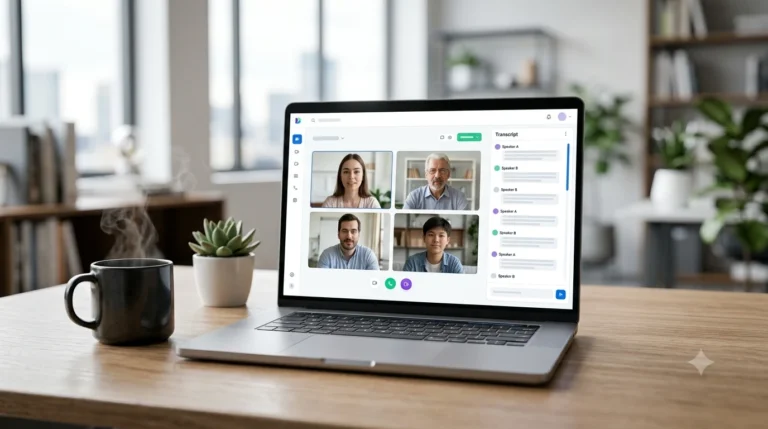
If you’ve ever needed to glance down at a live transcript mid-meeting because someone’s talking over you and you can’t quite catch the name they just said, that’s the exact itch Otter scratches. Connect your calendar, and it joins your scheduled Zoom, Meet, or Teams calls automatically, scrolling out a real-time transcript as people speak. Nobody else in this list does live transcription quite as well.
The free plan gets you 300 transcription minutes a month, with each individual conversation capped at 30 minutes — fine for a handful of standups, tight if you’re in back-to-back client calls all week. The part that trips people up is the file import limit: three lifetime imports, not three a month. We’ve watched people burn through all three in their first week trying to transcribe old recordings, then wonder why the option disappeared.
Otter Chat, which lets you ask questions about a call after it wraps, is a nice touch once you’re on a paid plan. Business tier pricing runs a bit higher than several of the botless alternatives here, so if your main draw is the live transcript and nothing else, it’s worth pricing out whether you actually need the jump to Business or if Pro covers what you’re doing.
Pricing: Free (Basic) with 300 minutes/month, a 30-minute cap per conversation, and 3 lifetime file imports; Pro $8.33/user/month billed annually ($16.99/month billed monthly); Business $19.99/user/month billed annually ($30/month billed monthly); Enterprise custom.
Platforms: Zoom, Google Meet, Microsoft Teams.
tl;dv
We burned through tl;dv’s entire free allotment of AI notes in under a week of normal use, and that’s the single most important thing to know before you sign a team up for it. The free plan gives you unlimited video recording and transcription, which sounds generous, but the actual AI-generated notes and AI-question features are capped at 10 lifetime uses — not monthly, lifetime. Once you’re out, you’re out, until you upgrade.
Where tl;dv earns its keep is the clip library and multi-meeting AI search, which lets you ask a question and get an answer pulled from your entire call history instead of one recording at a time. Sales and customer success teams get real mileage from this, especially combined with the CRM and Zapier integrations. Just budget for the upgrade sooner than the marketing copy implies — Business-tier pricing sits meaningfully above Fathom and MeetGeek for comparable functionality, and more than one independent review has flagged confusing upgrade prompts during signup, so read the fine print before you commit a whole team to it.
Pricing: Free (unlimited recording, capped at 10 lifetime AI notes/summaries); Pro $18/user/month billed annually ($29/month billed monthly); Business $59/user/month billed annually ($98/month billed monthly); Enterprise custom.
Platforms: Zoom, Google Meet, Microsoft Teams.
Granola
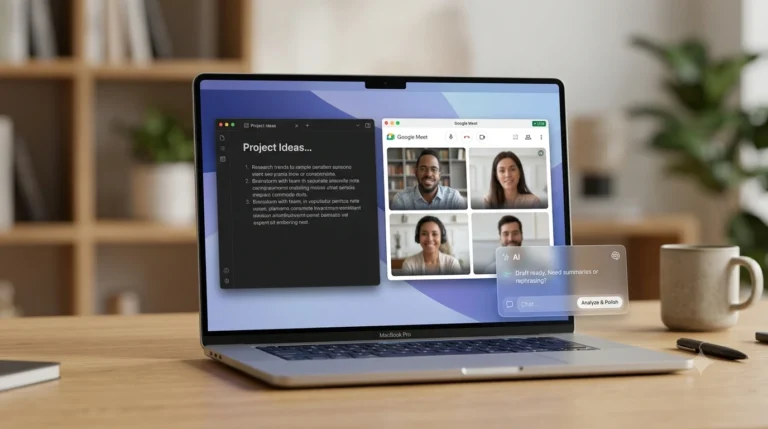
The best compliment you can pay Granola is that people tend to forget it’s running. There’s no bot, no icon in the participant list, nothing announcing itself. It just captures your device’s audio in the background while you type rough, half-formed notes during the call, and afterward it stitches your notes together with the transcript into something a lot more polished than what you actually wrote.
Granola went through a rebrand in early 2026 that changed its pricing structure, and a lot of older reviews and comparison sites still haven’t caught up — you’ll see some quoting a “25 lifetime notes” cap or a retired “Individual” plan that no longer exists. Here’s what’s actually true right now: the free Basic plan gives you unlimited meeting notes, full stop. The real limit is time, not volume — only the last 30 days of your notes stay accessible in the app. Anything older gets retained on Granola’s end but locked behind Business until you upgrade, which costs $14 per user per month.
There’s a genuine drawback worth sitting with before you go all-in: Granola doesn’t keep audio for playback. If the transcript garbles something and you want to go back and listen to confirm what was actually said, you can’t. For casual internal meetings that’s a non-issue. If you’re a journalist, researcher, or anyone who occasionally needs to verify an exact quote, that’s a real limitation, not a nitpick.
Pricing: Free (Basic) with unlimited meeting notes and a rolling 30-day history window; Business $14/user/month for unlimited history plus integrations like Notion, Slack, HubSpot, and Zapier; Enterprise $35/user/month with SSO and API access.
Platforms: Zoom, Google Meet, Microsoft Teams, and in-person conversations through your laptop mic.
MeetGeek
MeetGeek’s free plan packs in more than it has any right to: single-meeting analytics, AI chat across your past meetings, support for over 100 languages, even a path to a HIPAA Business Associate Agreement if you ask for one. Features that plenty of competitors gate behind a paid tier show up here for free.
The catch is time, not features. You get 3 hours of transcription a month on the free plan, which sounds fine until you realize that’s roughly one long client call and a couple of standups before you’re tapped out. Go over on the Pro plan and you’re billed per extra hour rather than blocked outright, which is a more forgiving way to handle overage than a hard wall. If your meeting volume is genuinely low — a handful of calls a week, not back-to-back all day — MeetGeek’s free tier will outlast the “generous” free plans of bigger-name competitors. If you’re in meetings constantly, you’ll hit that 3-hour ceiling before the first week is out.
MeetGeek is also one of the few tools here that lets you choose bot-based or bot-free capture per meeting, so you’re not locked into one philosophy the way you are with Fathom or Granola.
Pricing: Free (3 hours/month); Pro $9.99/user/month billed annually ($15.99/month billed monthly); Business $17/user/month billed annually ($27/month billed monthly); Enterprise custom.
Platforms: Zoom, Google Meet, Microsoft Teams.
Krisp AI noise cancelling
Krisp didn’t start as a meeting notes tool at all, and it shows — in a good way. The core product is noise cancellation, and it’s genuinely the best in the category. Run a call from a coffee shop, a construction zone next door, or a kid screaming in the next room, and the person on the other end hears none of it. If your team works from anywhere but a quiet home office, this is the one feature on this whole list that people notice immediately and never want to give up.
The AI note-taking layer got bolted on later, and it’s fine, not exceptional — it trails what Granola or Fireflies produce on summary quality. But it’s bot-free by design, sitting at the operating-system audio level so it works across nearly any calling app, not just the big three video platforms. The free plan caps noise cancellation at 60 minutes a day and limits you to a couple of AI meeting summaries daily, which is enough to trial the product but not enough to run your whole workday on. One more thing worth knowing: noise cancellation isn’t available on mobile, so if half your calls happen from your phone in a parking lot, don’t expect the same magic there.
Pricing: Free (60 minutes/day noise cancellation, a couple of AI summaries/day); Core/Pro $8/user/month billed annually ($16/month billed monthly); Advanced/Business $15/user/month billed annually ($30/month billed monthly); Enterprise custom.
Platforms: Zoom, Google Meet, Microsoft Teams, and regular phone calls.
Sembly AI
Sembly is built for a different buyer than most of this list — operations and project managers who want meeting analytics on top of transcription, not just a recap in their inbox. Multi-meeting AI chat, task extraction, and “AI Artifacts” that can turn a rambling conversation into a structured requirements doc are the real draw, and if your team is already deep into MCP or webhook-based workflows, Sembly plugs into that better than most competitors here.
Here’s where we have to be honest with you: we could not get a straight answer on whether Sembly still offers a real free tier. Some pricing trackers list a limited “Personal” plan; others show trial-only access with no free option at all. Sembly has restructured its plans more than once recently, and the aggregator sites clearly haven’t caught up with each other, let alone with Sembly itself. Our advice: don’t take any third-party site’s word for it, including this one — check Sembly’s own pricing page at signup before assuming you’ll get a free plan to test with. Entry-level paid pricing runs noticeably higher than Fathom, Granola, or MeetGeek for comparable individual use, so it’s a harder sell if you’re evaluating solo.
Pricing: Reported entry pricing in the $10–17/user/month range for a Basic/Pro-equivalent tier, scaling to $30–39/user/month for higher tiers; Enterprise custom. Confirm free-tier availability directly with Sembly, since sources conflict.
Platforms: Zoom, Google Meet, Microsoft Teams.
Fellow
Fellow doesn’t quite belong in the same conversation as the rest of this list, and that’s kind of the point. It started life as a collaborative meeting-agenda and 1:1 tool for managers — the thing you use before a meeting to set an agenda and after it to track action items — and AI note-taking got layered on top later rather than being the whole product. If your team already runs structured agendas and performance check-ins through Fellow, the AI notes are basically a free upgrade to something you’re already paying for. If you’re starting from zero and just want a note taker, it’s a lot of extra tool for what you need.
The free plan is the tightest on this list by a wide margin: 5 lifetime AI meeting notes and 5 lifetime AI recordings. That’s not a monthly allowance, it’s five total, ever, before you’re expected to upgrade. Treat it as a demo, not a real free tier. Where Fellow pulls ahead once you’re on a paid plan is “Ask Fellow,” which lets you query your entire meeting history in plain language, plus a compliance posture — SOC 2 Type II, HIPAA and GDPR support, no training on customer data — that’s a genuine differentiator if you’re in a regulated industry evaluating vendors.
Pricing: Free (5 lifetime AI notes and 5 lifetime AI recordings); Team $7/user/month billed annually ($11/month billed monthly); Business $15/user/month billed annually ($23/month billed monthly); Enterprise around $25/user/month.
Platforms: Zoom, Google Meet, Microsoft Teams, and Slack huddles.
Zoom AI (formerly Zoom AI Companion)
Here’s a piece of 2026 news that’s tripped up a lot of people searching for this: Zoom retired the “AI Companion” brand name mid-year. If you go looking for it in your Zoom settings and can’t find anything by that name anymore, you’re not losing your mind — the features just got folded into Zoom Workplace under plainer labels like “meeting summary” and “smart recording.” Same functionality, quieter branding.
If your team already pays for Zoom Workplace, this might genuinely be all you need — the meeting-summary and recap features are included at no extra cost on paid plans, and notably, they don’t require you to record the call first; it’s a separate function with its own retention settings. Free Basic accounts get a limited taste: roughly 3 AI-summarized meetings a month and a cap on in-meeting questions. Where it gets more complicated is the newer agentic layer — task automation that reaches into your calendar, Jira, Slack, and CRM records now lives behind a separate paid add-on billed by usage credits, running around $20 a user per month on its own. So “included with Zoom” only gets you the basics; the automation everyone’s excited about in 2026 is its own line item.
The obvious limitation: everything stays inside the Zoom ecosystem. If your actual work lives in Linear, Notion, or a CRM that isn’t natively wired in, getting the meeting output where you need it takes more manual effort than a tool like Fathom or Otter that was built cross-platform from day one.
Pricing: Included free on paid Zoom Workplace plans; limited access for free Basic accounts (about 3 AI-summarized meetings/month); the agentic add-on tier runs roughly $20/user/month separately.
Platforms: Zoom-native, with Google Meet, Microsoft Teams, and in-person voice recording support added in the 3.0 update.
Direct Head-to-Head Comparisons
Both send a bot, both cover Zoom, Meet, and Teams, and both have free plans worth actually using — but they’re solving different problems. Otter wants you reading along in real time, which matters if you’re the kind of person who wants to double-check a name or a number while someone’s still talking. Fathom couldn’t care less about the live moment; its whole value shows up after the call ends, in the form of an instant basic summary, clips you can drop into Slack, and CRM sync if you’re on a sales team. Want to follow along mid-meeting? Otter. Want a clean recap waiting in your inbox and don’t care what happens during the call? Fathom. On sheer free-plan generosity, Fathom edges it — unlimited recording and transcription beats Otter’s 300-minute monthly cap, though Fathom’s polished summary templates hit their own limit after a handful of calls. Otter’s Pro tier starts at $8.33/user/month annual if the live transcript is worth paying for on its own.
Neither of these is subtle about wanting you on a paid plan, but they meter you differently, and that difference actually matters for which one costs less in practice. Fireflies doesn’t touch your transcription minutes at all — record as much as you want on any plan. Instead it limits storage (400 minutes total on Free) and a shared pool of AI credits that power summaries and action items. tl;dv flips that: unlimited recording up front, but the AI notes and AI-question features are capped at 10 lifetime uses on the free plan, which you’ll blow through fast if you’re using them daily. If your team records constantly but only wants AI summaries occasionally, Fireflies’ credit system will stretch further. If you’re fine paying once you need consistent AI notes and just want unlimited recording in the meantime, tl;dv is the simpler thing to wrap your head around.
Both of these are unlimited on meeting volume now, which means the actual decision comes down to something else entirely: do you want a bot in the room or not. Fathom sends one in and gives you unlimited recording, transcription, and basic summaries for free, with the nicer summary templates rationed to a handful of calls a month. Granola skips the bot altogether, captures your device audio instead, and also lets you take unlimited notes for free — its restriction is that only the last 30 days stay visible until you pay $14 a month for Business. If your calls are external and sales-driven and a bot showing up is expected anyway, Fathom fits naturally. If you’re in HR conversations or client meetings where a visible recording bot would change how people talk, and you’re fine paying once you need to look back further than a month, Granola is the better call.
Use-Case Recommendations
If you’re hiring or running interviews, reach for Granola or Krisp — a botless recorder keeps the conversation feeling like a normal conversation instead of a recorded proceeding, and candidates notice the difference.
Sales teams living and dying by CRM data should look at Fathom or tl;dv first. Both sync fields directly into Salesforce or HubSpot and build searchable clip libraries around the sales-call use case specifically, rather than treating it as an afterthought.
For in-person meetings, Granola or Zoom’s Voice Recorder feature both work off your laptop mic, so you’re not stuck trying to shoehorn a video-call tool into a conference room conversation.
If your team works from noisy home offices or an open-plan floor, Krisp is worth trying before anything else on this list — noise cancellation is its whole reason for existing, not a bolted-on feature.
Teams that already run structured 1:1s and agendas should just add AI notes inside Fellow rather than bringing in a second tool, since you’re already paying for the platform anyway.
And if you’d rather not add another subscription at all, check whether Zoom’s built-in features cover what you need first — assuming you’re already on a paid Workplace plan and most of your calls happen inside Zoom.
Step-by-Step: How to Set Up an AI Note Taker for Free
Pick a tool based on how you actually meet, not the biggest number on the pricing page. A 30-day rolling history window on Granola can genuinely outlast a 300-minute monthly cap on Otter if you have fewer, longer calls and rarely need to dig up something from two months back.
Connect your calendar next. Most bot-based tools — Fathom, Otter, tl;dv, MeetGeek — need calendar access to know which meetings to join automatically, and skipping this step is the single most common reason people think a tool “isn’t working.”
Decide on your default bot behavior before your first real meeting. Do you want it joining everything automatically, or only calls you specifically invite it to? Most tools let you set this per meeting or by calendar rule, and it’s worth deciding once rather than fumbling with it live.
Run one internal test meeting before you point any of these at a client or a candidate. In testing, we’ve caught transcript accuracy issues and awkward summary phrasing on a throwaway internal call that would’ve been embarrassing to send externally.
Know your free plan’s actual limit going in, because “free plan limit” means wildly different things depending on the tool — a minutes-per-month cap, a lifetime AI-notes cap, a rolling history window, or a daily noise-cancellation ceiling. Set a reminder to check usage before you’re mid-project and suddenly locked out.
Turn on only the integrations you’ll actually use. Slack notifications, a Notion export, whatever fits your workflow — resist the urge to connect everything just because the option’s there.
Tell the people you’re meeting with. Bot or no bot, recording and AI-summarizing a conversation without saying so is a consent problem and, depending on where you are, a legal one. Most tools flag this automatically, but saying it out loud costs you nothing and avoids an awkward moment later.
Frequently Asked Questions
What’s the best free AI meeting notes tool?
For unlimited recording with no time meter running, Fathom’s free plan is the one to beat. If you want the broadest feature set on a free tier instead — cross-meeting AI chat, 100+ languages, basic analytics — MeetGeek edges it out on paper, though its 3-hour monthly cap will feel tighter in practice than Fathom’s unlimited recording.
Fathom AI free vs. paid: is it worth upgrading?
The free plan covers unlimited recording, transcription, and basic AI summaries on every call, so plenty of casual users genuinely never need to pay. You’ll feel the pull toward Premium once you want the polished, template-based summaries regularly (the free plan caps those at a handful of calls a month), AI action items, “Ask Fathom” search, or team features like CRM sync.
What is a botless AI meeting recorder, exactly?
It’s a tool that pulls your meeting’s audio straight from your computer instead of joining the call as a visible participant. Granola and Krisp both work this way, and Fathom now offers a native bot-free mode for Mac users as well. The trade-off: you’re getting a clean capture of your own side of the conversation, but not necessarily a full multi-track recording of everyone on the call the way a bot sitting inside the meeting provides.
Do I need to tell people I’m using an AI note taker?
Yes, every time. Whether the tool uses a visible bot or not, recording and summarizing a conversation without disclosure is a consent issue and, depending on your location, a legal one too. Most tools send an automatic notice, but saying it out loud in the meeting itself is worth the ten seconds it takes.
Is Zoom’s built-in AI note-taking enough, or do I need a separate tool?
If every meeting you care about happens inside Zoom and you’re already paying for a Workplace plan, Zoom’s built-in features might genuinely cover you without adding anything else. If your calendar bounces between Zoom, Google Meet, and Teams, or you want that AI output flowing automatically into tools outside Zoom, a cross-platform option like Fathom, Otter, or MeetGeek is going to serve you better day to day.
How accurate is AI meeting transcription in 2026?
It varies by tool, audio quality, and how many people are talking over each other, but most of the established names here land somewhere in the 90%+ range on clear, single-speaker audio in widely spoken languages. Heavy accents, technical jargon, and crosstalk all knock that down. Skim the transcript yourself before trusting a summary blindly on anything that actually matters — we’ve caught more than one wrong name and misheard number this way.
Can these tools replace human note-takers entirely?
For routine meetings, pretty much, yes. For anything legally sensitive — a formal HR investigation, a contract negotiation — treat the AI summary as a helpful first draft rather than an official record, and have an actual person review the full transcript before it becomes the record of what was said.
What should I look for if I’m evaluating AI workplace agents beyond meeting notes?
Meeting note takers only cover one slice of what AI can now do across a workday. If you’re also weighing broader AI workplace agents like Copilot Cowork, figure out first whether you actually need a dedicated meeting tool, a general workplace assistant, or both running side by side — they’re not really competing for the same job.
If you’re managing more than just meeting notes across your team’s AI stack, it’s worth glancing at a broader AI productivity suite instead of stacking point solutions one at a time. And if part of your job involves cleaning up AI-generated recaps before they go out to a client, the process for humanizing AI outputs and notes is worth a read too — a raw AI summary and something you’d actually put your name on are rarely the same document.
So, where does that leave you? If you’re solo or a small team on a tight budget, start with Fathom’s free plan and only pay once you’re actually hitting the summary cap — you’ll know within a month. If you’re a sales team, skip the free tiers entirely and go straight to comparing Fathom Business against tl;dv Pro on CRM sync, since that’s the feature that actually pays for itself. And if a bot showing up on client calls makes you wince even a little, just start with Granola. The $14 a month for Business is cheap insurance against losing a note you needed from six weeks ago.

Pingback: Claude Cowork vs ChatGPT Work vs Copilot Cowork: Which AI Actually Gets Work Done?